Setting
SETTING MENU — SETTINGS
⚙️ WHAT IS THIS MENU FOR?
The SETTING menu lets you adapt the JAGUAR script to your in-game setup and your preferences.
Here you can enter your sensitivities, adjust your aiming speed while firing, configure vibration, select your response curve and customize several other settings.
🎮 HOW DO YOU OPEN THE MENU?
1. Hold L2 + OPTIONS on PlayStation or LT + MENU on Xbox to open the main menu. 2. Use UP / DOWN to select SETTING. 3. Press CROSS / A to enter the menu.
🕹️ HOW DO YOU NAVIGATE?
- LEFT / RIGHT: move from one setting screen to the next. - UP / DOWN: change the value or option shown. - CROSS / A: open an extra setting when one is available. - CIRCLE / B: go back to the previous menu.
💡 TIP: First set the parameters that match your in-game settings, before you start adjusting the anti-recoil.
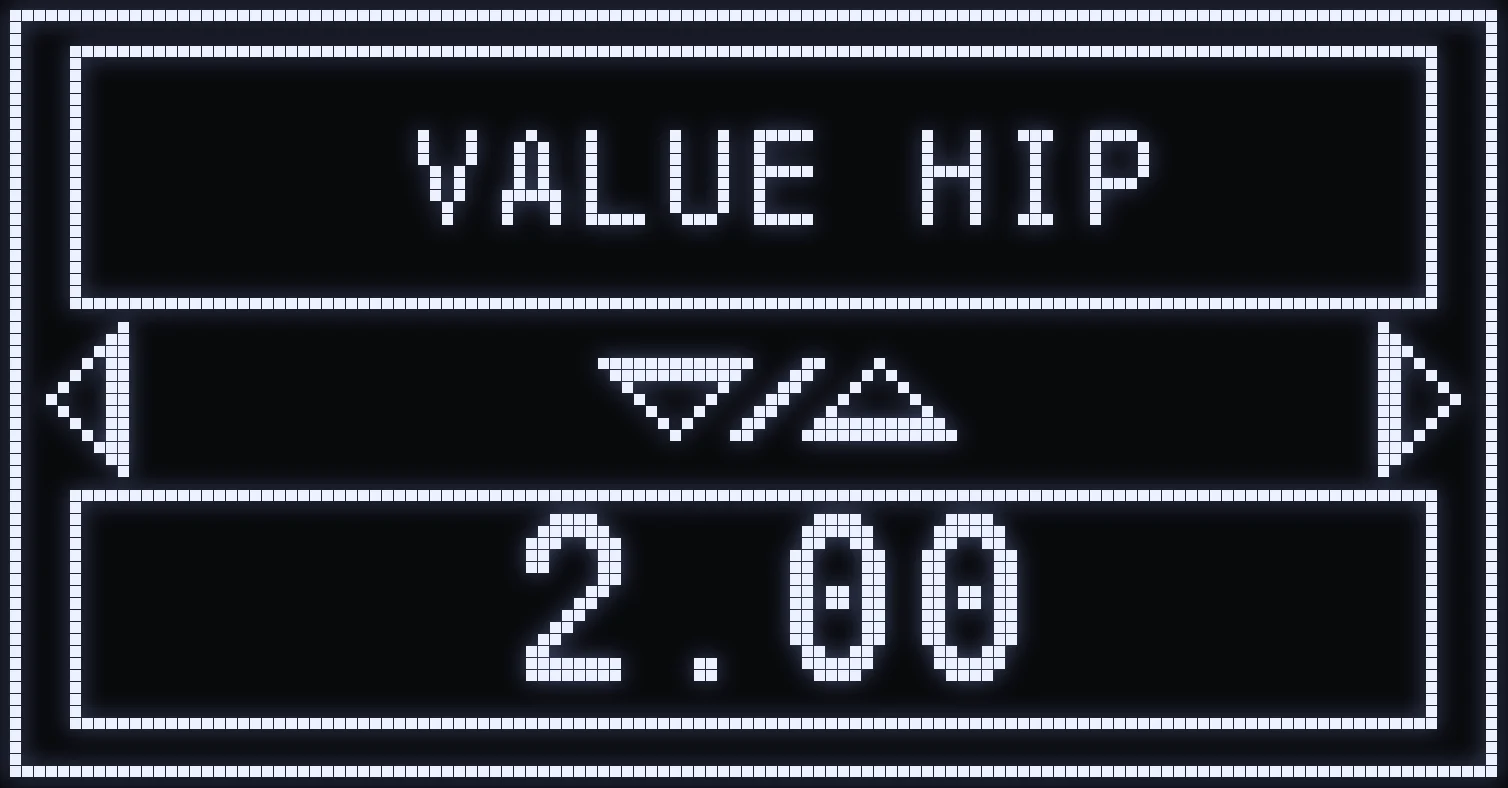
VALUE HIP
🎯 WHAT IS THIS SETTING FOR?
VALUE HIP tells the script the horizontal and vertical sensitivity you use in the game settings when you look around without aiming.
This matters so JAGUAR can match its anti-recoil compensation to your actual sensitivity.
⚙️ HOW DO YOU SET IT?
- UP: increases the value. - DOWN: decreases the value. - Available range: 1.00 to 4.00, in steps of 0.05.
💡 EXAMPLE
If your in-game sensitivity is set to 2.00, enter 2.00 in VALUE HIP as well.
⚠️ IMPORTANT: This setting doesn't change your in-game sensitivity directly. It just tells the script the value you actually use.
✅ TIP: If you change your sensitivity in the game, remember to update this value in JAGUAR.
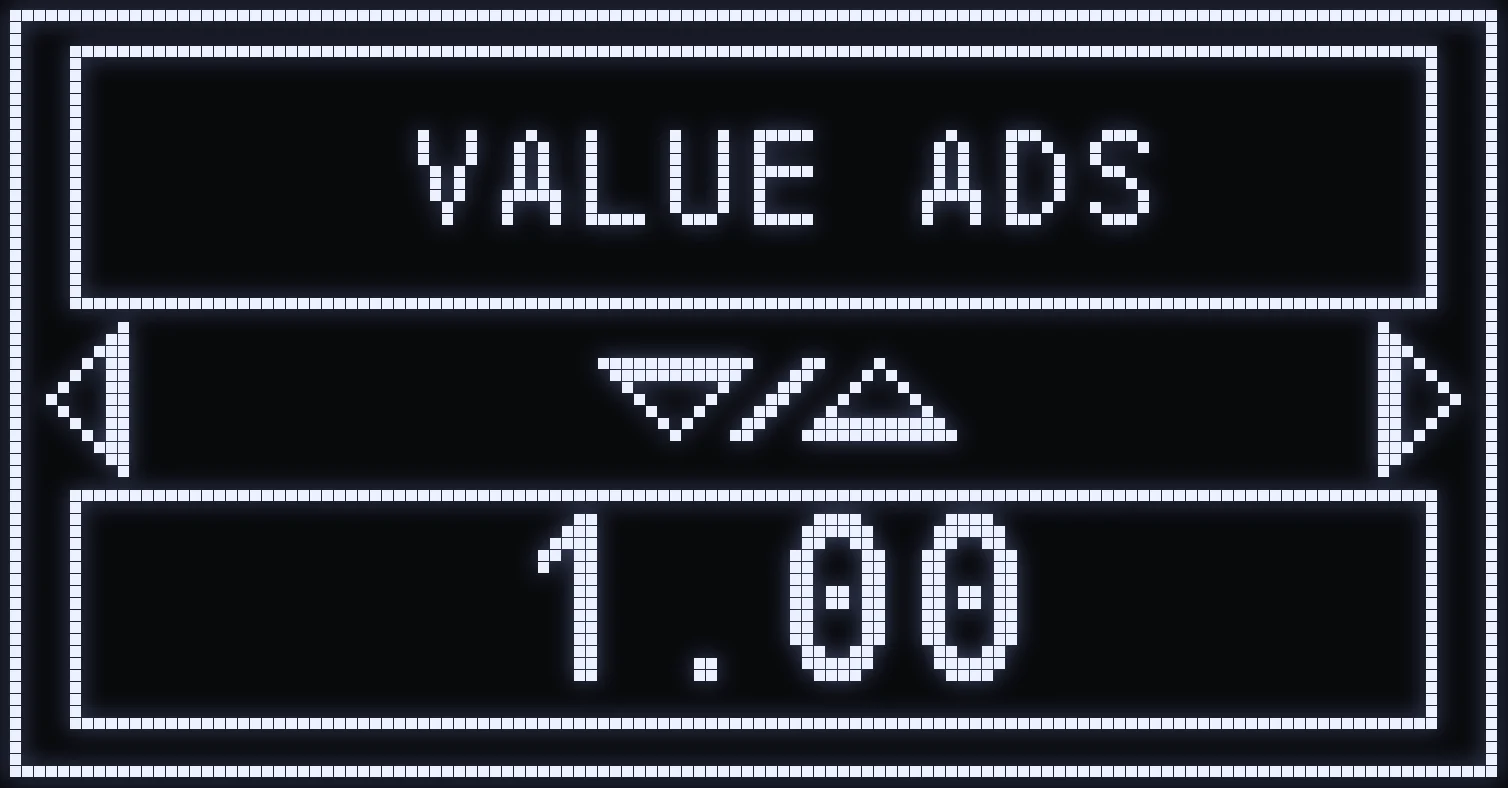
VALUE ADS
🎯 WHAT IS THIS SETTING FOR?
VALUE ADS tells the script your sensitivity multiplier when you aim down sights with your weapon.
It works alongside VALUE HIP so JAGUAR can adapt the anti-recoil correctly when you fire while aiming.
⚙️ HOW DO YOU SET IT?
- UP: increases the value. - DOWN: decreases the value. - Available range: 0.50 to 1.00, in steps of 0.05.
💡 EXAMPLE
You use the following sensitivities:
- Stick sensitivity: 2.00 - ADS sensitivity multiplier: 0.80
Just enter these same values in the VALUE HIP and VALUE ADS screens.
⚠️ IMPORTANT: Don't confuse VALUE ADS with SENS ADS&FIRE. VALUE ADS is the sensitivity set in your game, while SENS ADS&FIRE slows down your aim while you fire.
✅ TIP: Always enter your real values before you try to correct your recoil.
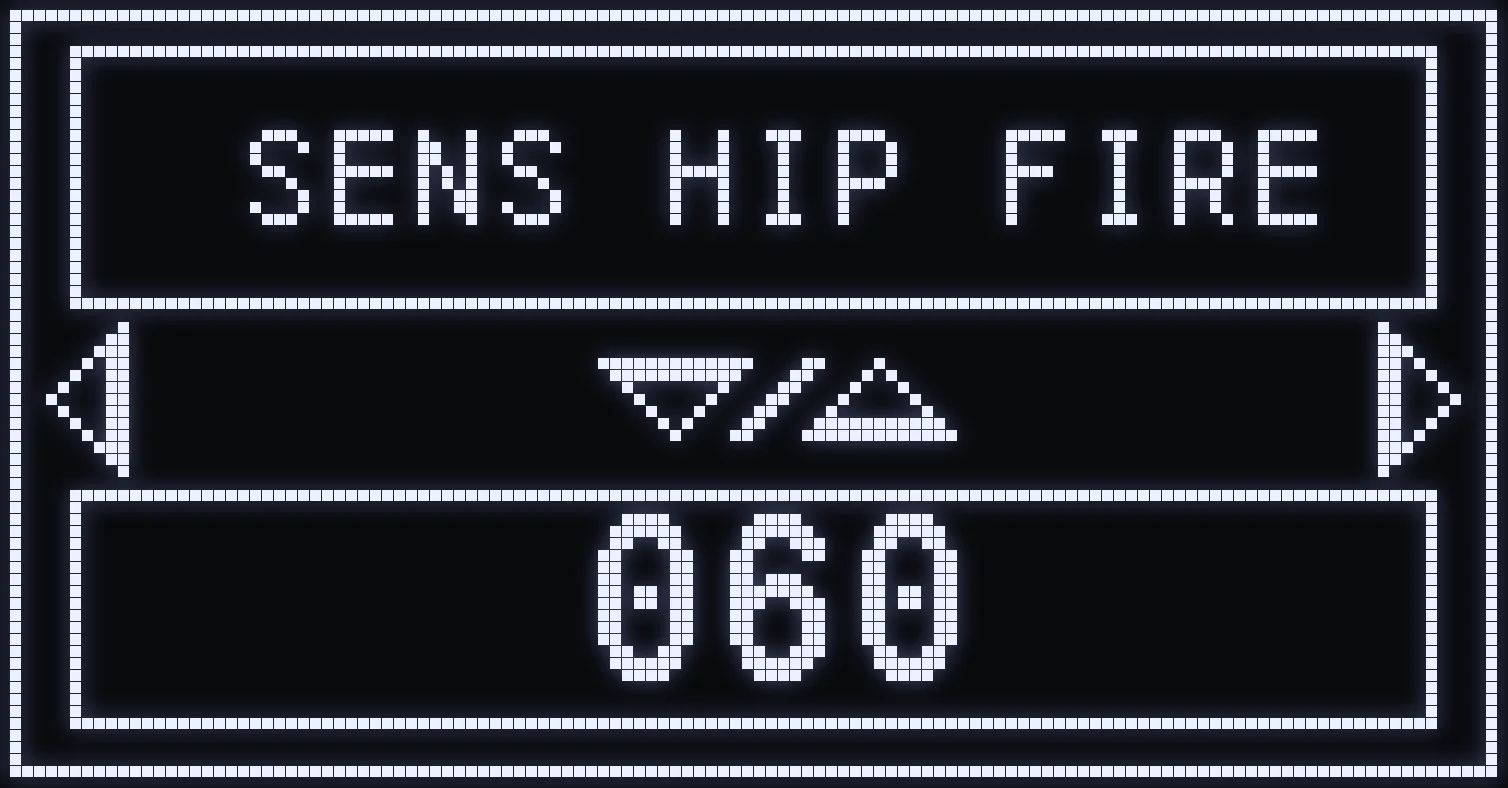
SENS HIP FIRE
🎯 WHAT IS THIS SETTING FOR?
SENS HIP FIRE automatically lowers your right stick sensitivity when you fire without aiming.
It's especially useful in close-quarters fights, when you hip-fire straight away.
By slightly lowering the sensitivity while firing, your movements can feel smoother, which makes small aim corrections easier.
⚙️ HOW DO YOU SET IT?
- UP: increases the sensitivity. - DOWN: decreases the sensitivity. - Available values: 1% to 100%.
💡 HOW DO YOU PICK YOUR VALUE?
- 100%: no extra reduction. - 80%: sensitivity slightly slowed down. - 50%: sensitivity heavily slowed down.
⚠️ IMPORTANT: This setting only works when you fire without aiming. If you aim and fire at the same time, SENS ADS&FIRE takes over.
✅ TIP: Don't lower the sensitivity too much, or you may struggle to track an enemy who's moving fast.
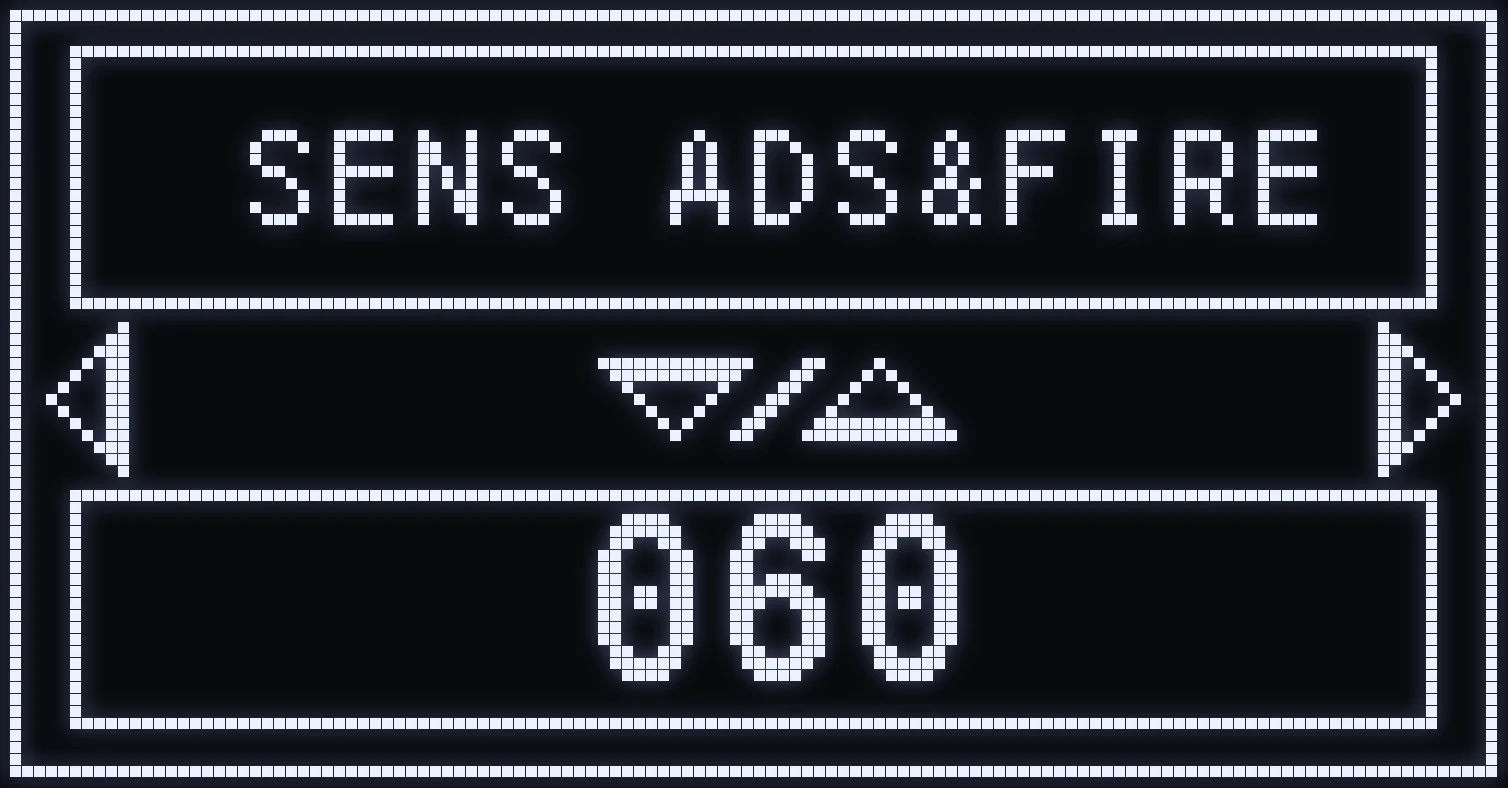
SENS ADS&FIRE
🎯 WHAT IS THIS SETTING FOR?
SENS ADS&FIRE automatically lowers your sensitivity when you aim and fire at the same time.
Unlike SENS HIP FIRE, this feature only kicks in when you fire while aiming down sights with your weapon.
It slows down your crosshair movement to make small corrections easier during a fight.
⚙️ HOW DO YOU SET IT?
- UP: increases the sensitivity. - DOWN: decreases the sensitivity. - Available values: 1% to 100%.
💡 EXAMPLE
With a value of 70%, your crosshair moves more slowly while you hold the aim and fire buttons at the same time.
When you stop firing, this reduction no longer applies.
🎮 OPENING THE EXTRA SETTING
Press CROSS / A to open LOWZONE %.
⚠️ WARNING: A sensitivity that's too low can make it hard to track a moving enemy.
✅ TIP: Find a balance between precision on small corrections and the ability to track a target quickly.
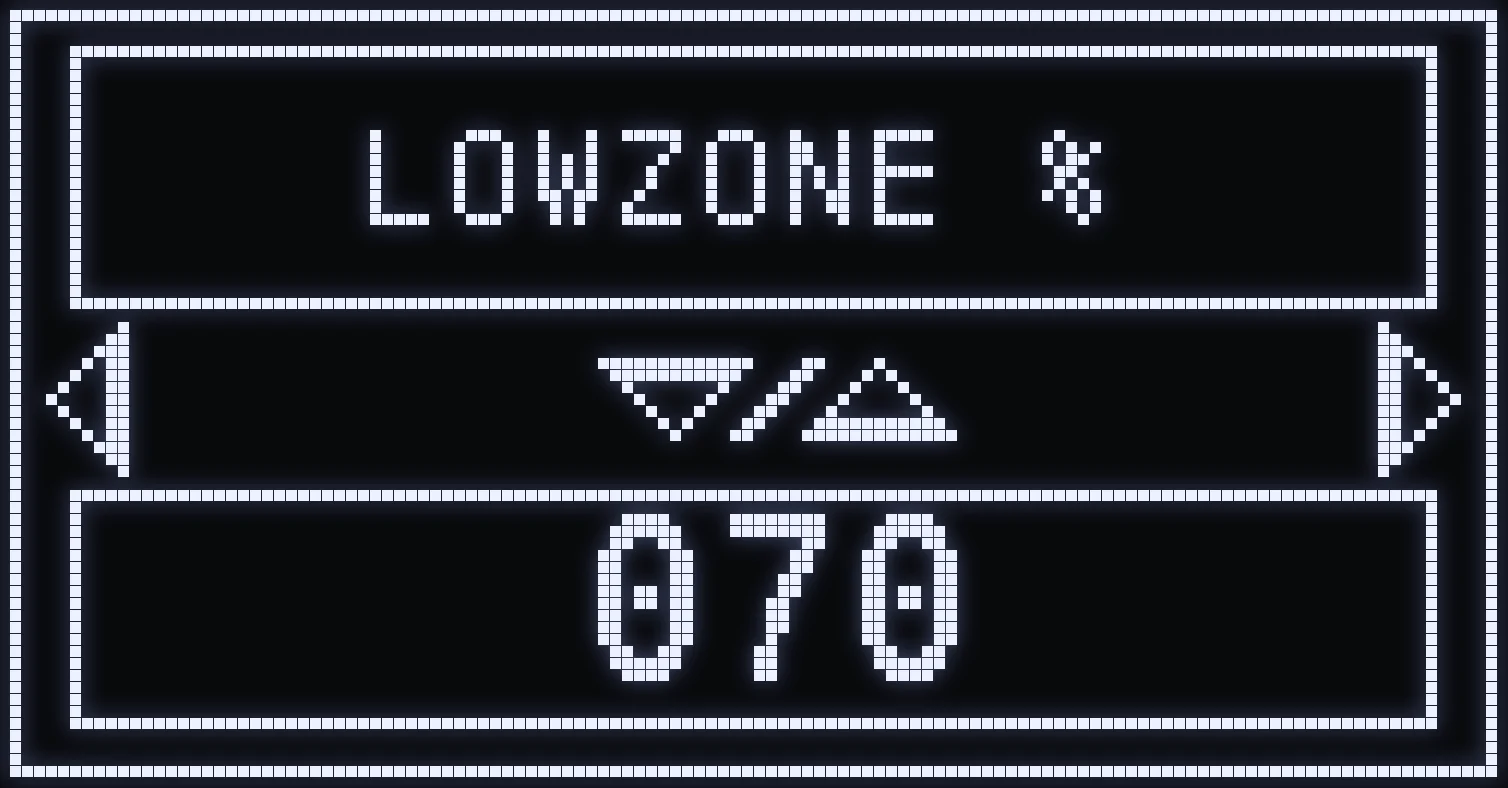
LOWZONE %
🎯 WHAT IS THIS SETTING FOR?
LOWZONE % lowers the sensitivity even further when you make small movements near the center of the right stick.
The goal is to keep your aim smoother on fine corrections, without slowing down larger stick movements in the same way.
This can be especially useful for adjusting your crosshair precisely while firing.
🎮 HOW DO YOU OPEN IT?
From SENS HIP FIRE or SENS ADS&FIRE, press CROSS / A.
- UP: increases the percentage. - DOWN: decreases the percentage. - CIRCLE / B: goes back to the previous setting.
⚙️ HOW DO THE VALUES WORK?
- Maximum value: no extra reduction at the center. - Lower value: smoother small movements. - Very low value: small movements noticeably slowed down.
❗ IMPORTANT: LOWZONE % applies to every shot, whether you aim or not. It's one and the same setting: whether you open it from SENS HIP FIRE or from SENS ADS&FIRE, you're changing the same value.
💡 TIP: Lower this value gradually if your crosshair feels too sensitive on small corrections. Don't go too low, so your aim stays responsive.
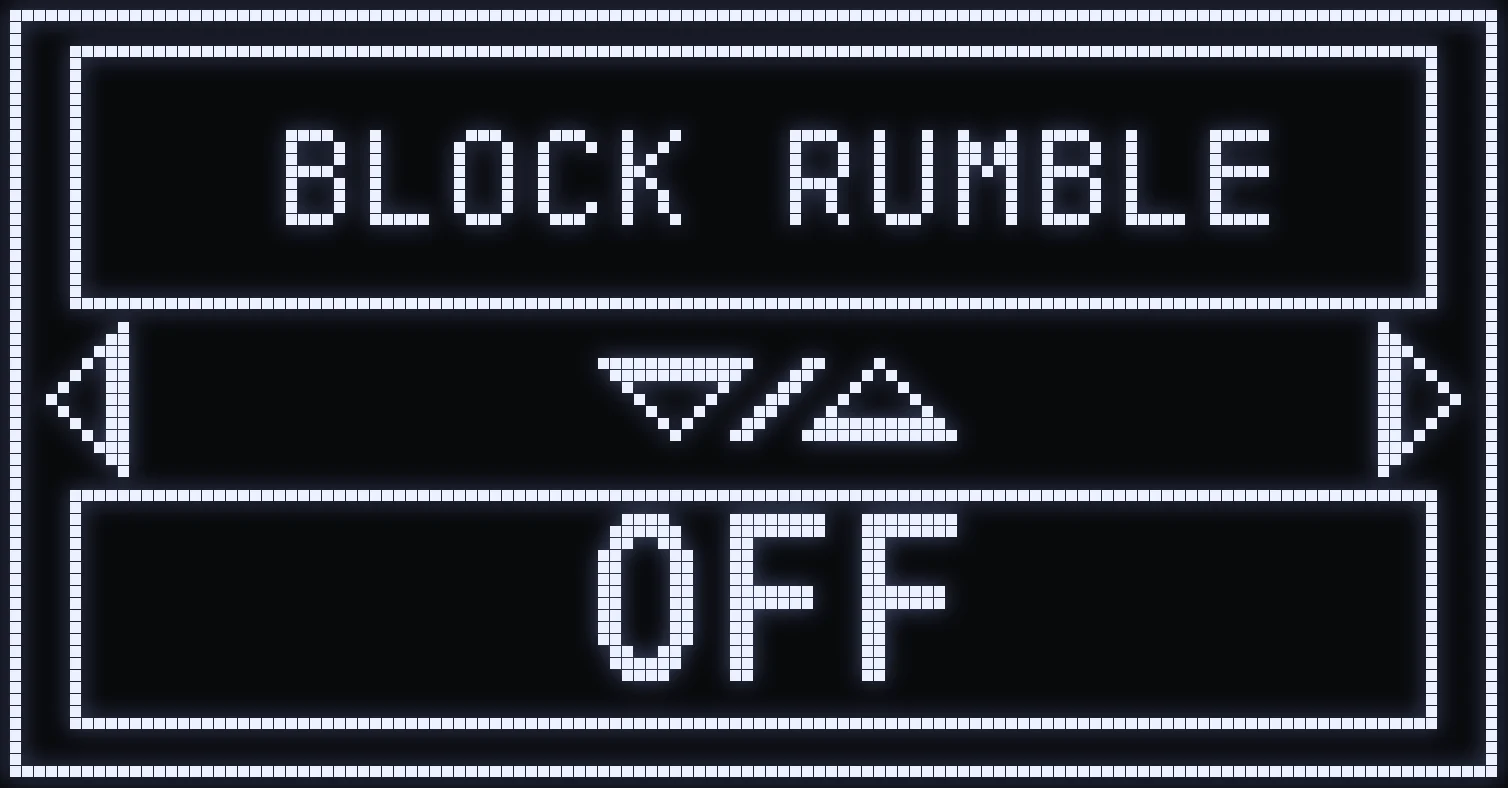
BLOCK RUMBLE
🎮 WHAT IS THIS SETTING FOR?
BLOCK RUMBLE removes the vibration you feel in the controller during your matches.
This can make playing more comfortable if you prefer to play without vibration, especially while firing and during fights.
⚙️ AVAILABLE MODES
- ON: blocks the vibration you feel in the controller. - OFF: lets vibration work normally.
Use UP / DOWN to turn this option on or off.
⚠️ WATCH OUT FOR AUTO-DETECTION
Some detection features, especially on Xbox, use the vibration information sent by the game.
So it's important to keep vibration ENABLED in the game settings, even if you turn on BLOCK RUMBLE in the script.
This option blocks the vibration feedback on the controller, without asking you to turn off vibration directly in the game.
✅ TIP: If you use automatic weapon detection, always check that vibration is enabled in the game options.
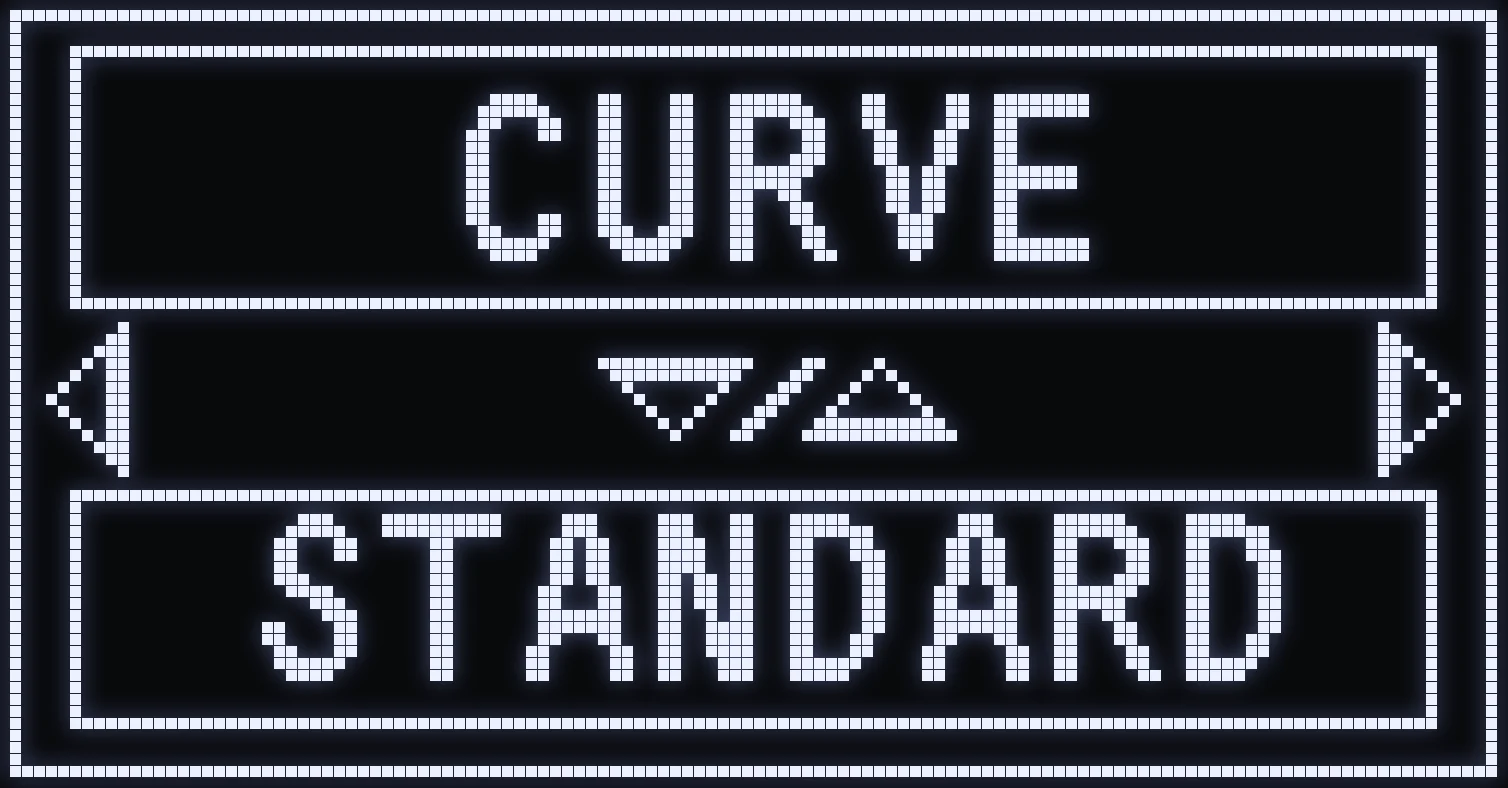
CURVE
🎯 WHAT IS THIS SETTING FOR?
The CURVE setting tells JAGUAR which type of response curve you use in the game's aim settings.
The response curve affects how the crosshair reacts to stick movement.
For the anti-recoil to match your aiming style, the script has to use the setting that matches your in-game setup.
⚙️ AVAILABLE MODES
- STANDARD: select this if you use the Standard curve in the game. - DYNAMIC: select this if you use the Dynamic curve in the game.
Use UP / DOWN to select your mode.
💡 EXAMPLE
If your game is set to a DYNAMIC curve, select DYNAMIC in the script as well.
⚠️ IMPORTANT: CURVE doesn't change the game's response curve directly. It lets the script use the matching compensation settings.
✅ TIP: Check this setting before you tune your anti-recoil, because the wrong curve can behave differently from what you expect.
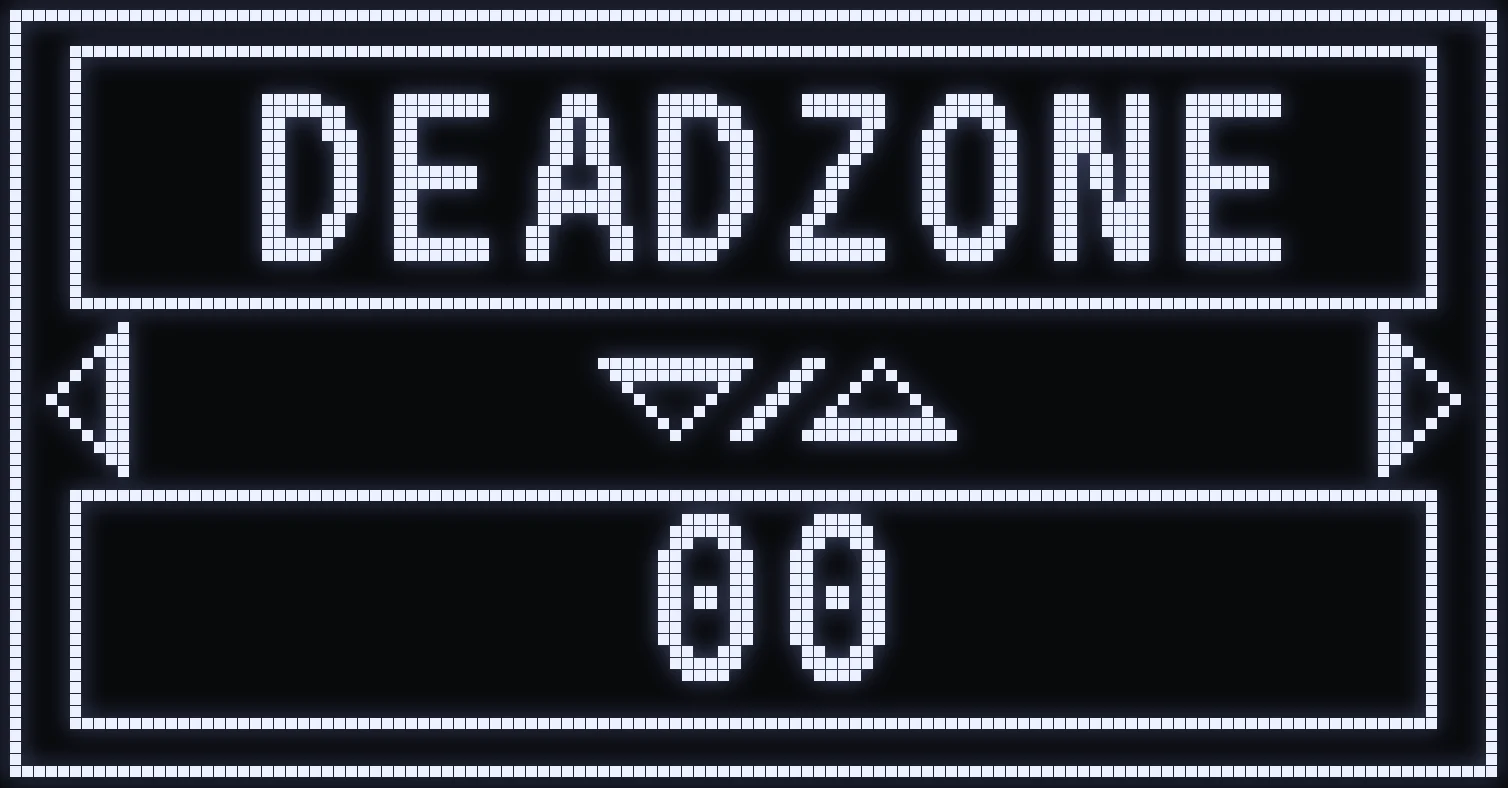
DEADZONE
🎮 WHAT IS THIS SETTING FOR?
DEADZONE adds an artificial deadzone to stick movements.
The deadzone is a small area around the center of the stick where movements are ignored.
This setting can help if your stick isn't very stable or causes slight unwanted movements.
⚙️ HOW DO YOU SET IT?
- UP: increases the deadzone. - DOWN: decreases the deadzone. - Available values: 0 to 10.
💡 HOW DO YOU PICK YOUR VALUE?
- 0: no extra artificial deadzone. - Low value: slightly reduces stray movements. - High value: the stick has to move further before it responds.
⚠️ WARNING: A DEADZONE that's too high can make small aim adjustments difficult and make your movements feel delayed.
✅ TIP: Keep a low value as long as your sticks work properly. Only raise this setting if you need to.
FOV
👁️ WHAT IS THIS SETTING FOR?
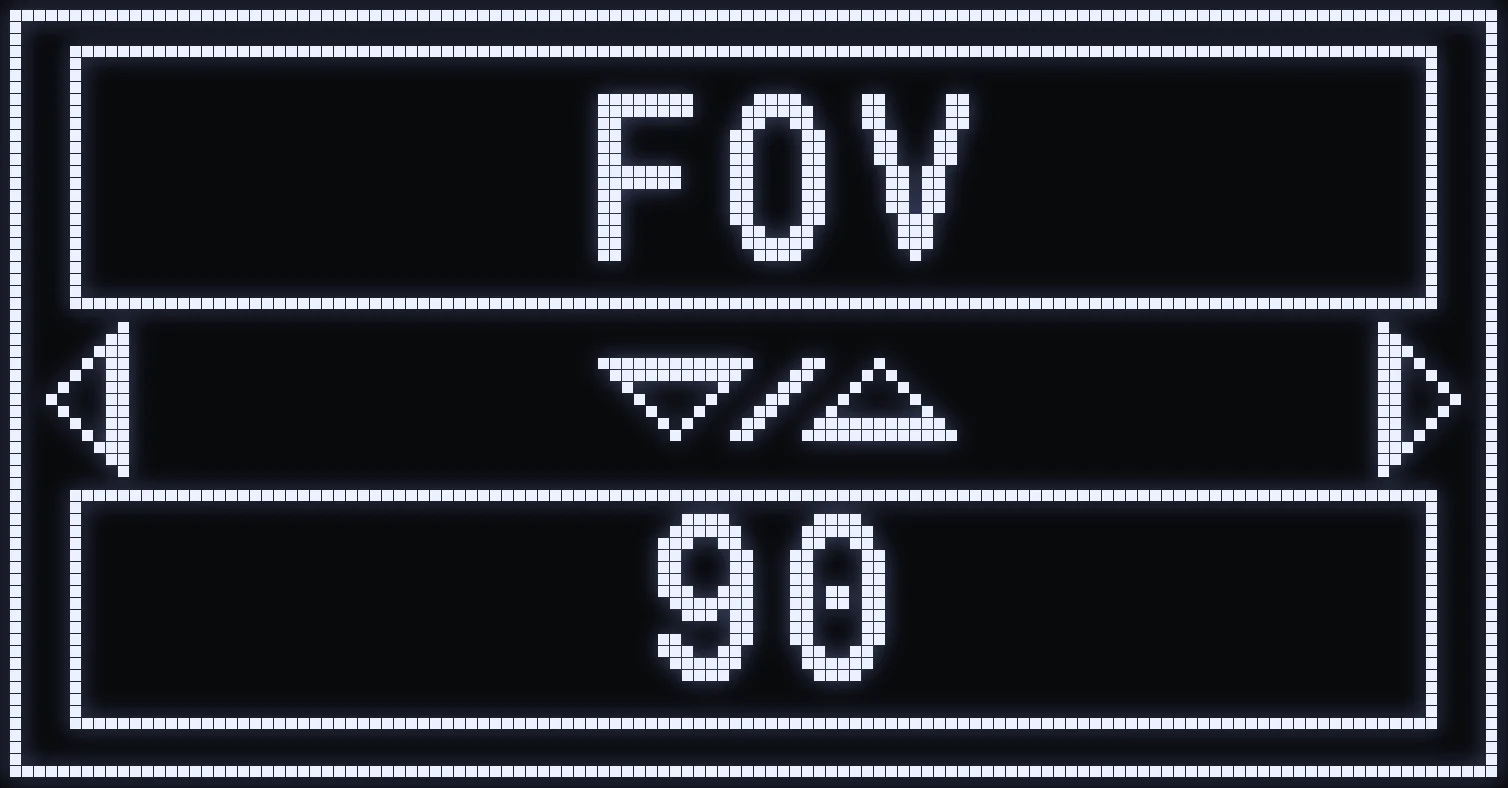
FOV is the field of view set in the game.
A high FOV lets you see a wider area around your character, while a lower FOV gives you a narrower field of view.
This difference can change how crosshair movement and recoil feel.
So JAGUAR uses this information to adapt its anti-recoil compensation.
⚙️ HOW DO YOU SET IT?
- UP: increases the value. - DOWN: decreases the value. - Available values: 90 to 120, in steps of 2.
💡 EXAMPLE
If your in-game FOV is set to 110, enter 110 in JAGUAR as well.
⚠️ IMPORTANT: Changing the FOV in the script doesn't change your actual field of view in the game.
✅ TIP: Always enter the same value you use in the game options, so your anti-recoil stays properly matched.
SELECT PROFIL
🔫 WHAT IS THIS SETTING FOR?
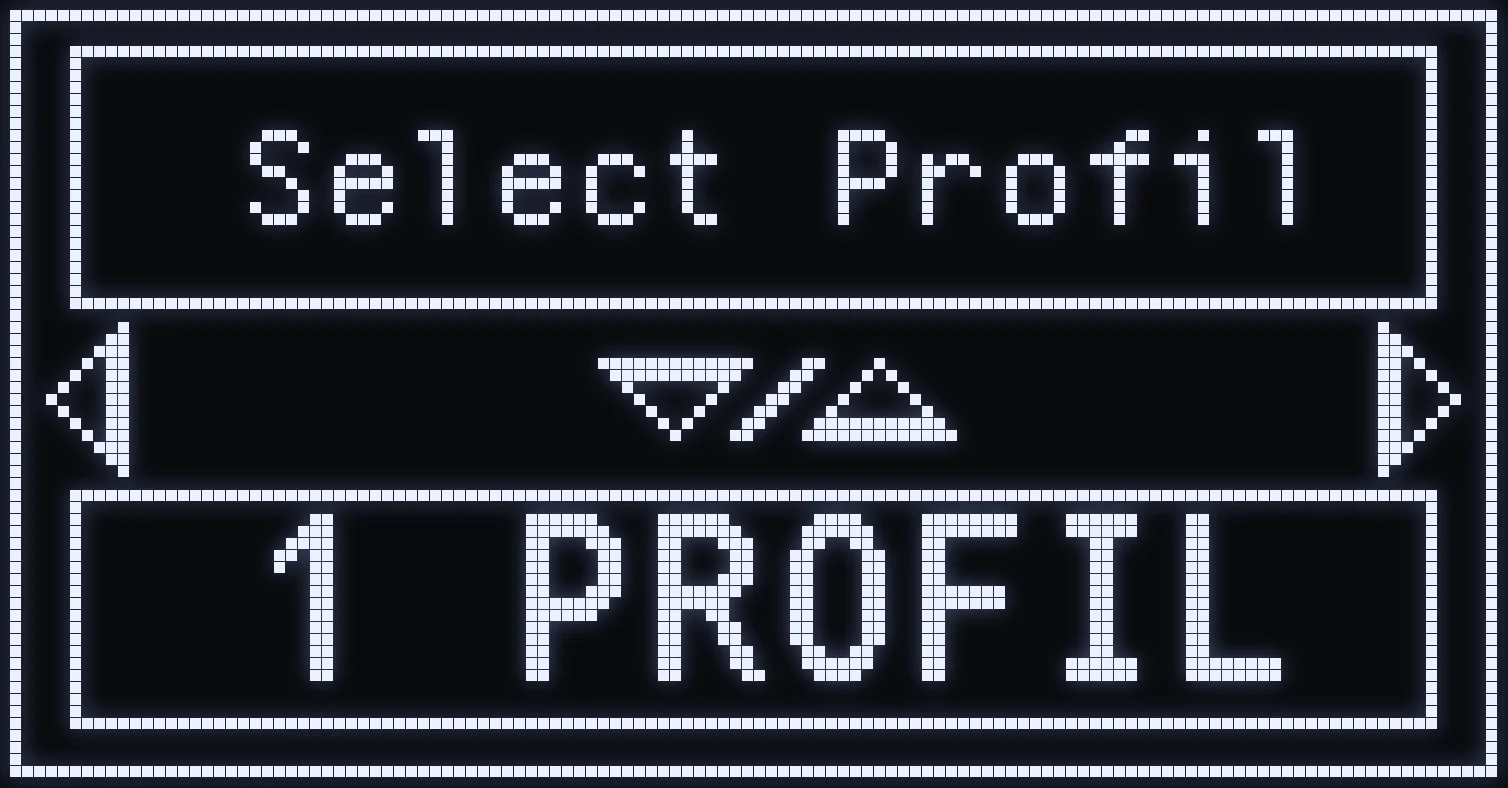
SELECT PROFIL lets you choose whether JAGUAR runs with a single weapon profile or with two separate profiles.
This system is especially useful when you play with a primary and a secondary weapon.
Each profile keeps a weapon selection and its matching settings.
⚙️ AVAILABLE MODES
- 1 PROFIL: uses a single active profile. - 2 PROFIL: lets you use a PRIMARY profile and a SECONDARY profile.
Use UP / DOWN to choose the mode you want.
🎮 HOW IT WORKS WITH 2 PROFILES
When 2 PROFIL mode is on, the script can switch from one profile to the other on a normal weapon swap.
That way you keep setups suited to both of your weapons, without having to select them again every time you swap.
💡 EXAMPLE: You use an assault rifle as your primary weapon and an SMG as your secondary. Each profile can keep the selection that matches the equipped weapon.
⚠️ IMPORTANT: Check that the weapon selected in each profile really matches the one you're actually using.
AUTO DETECT
🔍 WHAT IS THIS SETTING FOR?
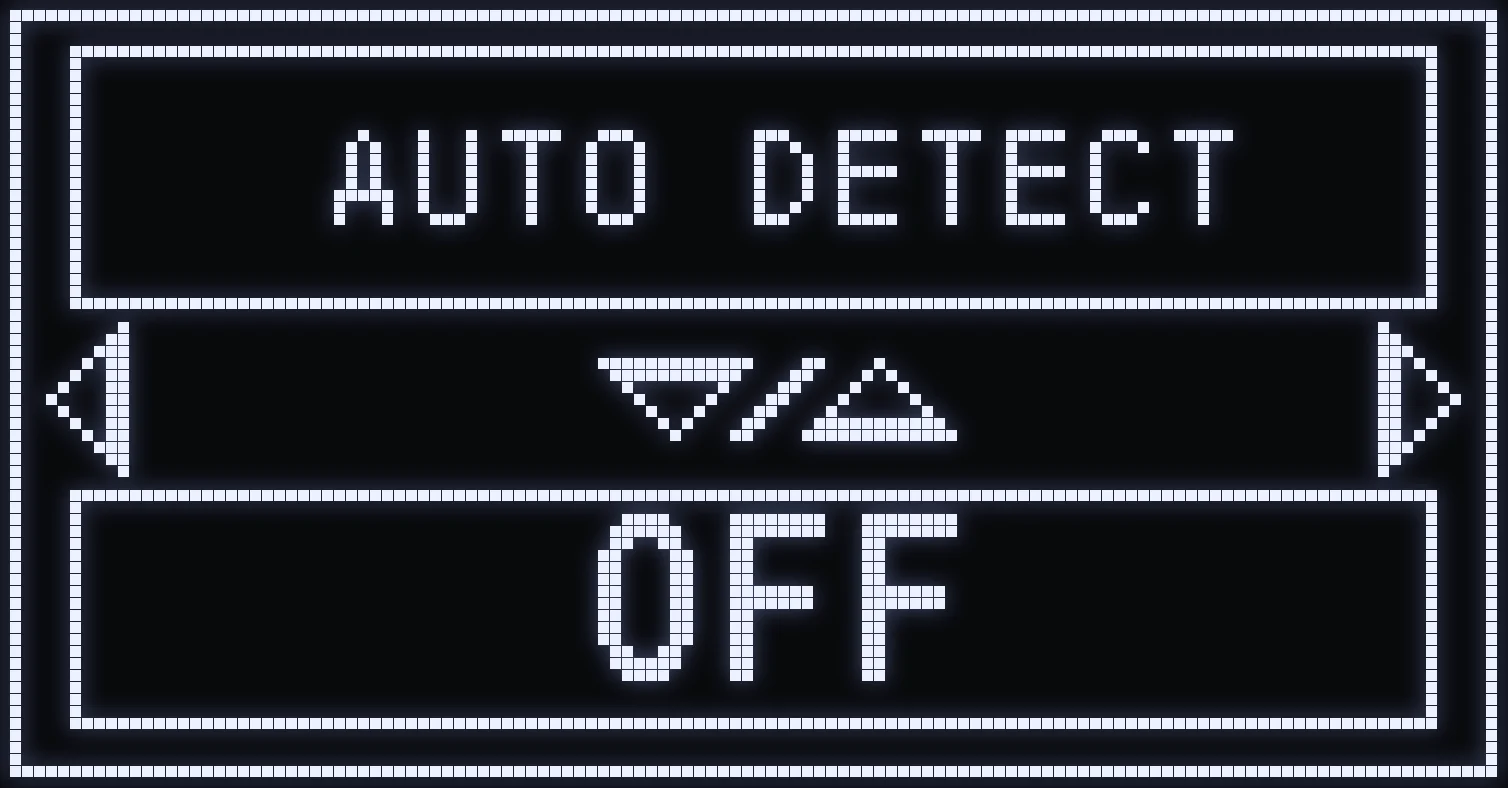
AUTO DETECT lets the JAGUAR script automatically identify certain weapons or weapon categories from the information sent by the game and the controller.
When a weapon is correctly recognized, the script can apply the anti-recoil settings that match it.
This saves you from selecting your weapon manually every time you swap, as long as it's compatible with detection.
⚙️ AVAILABLE MODES
- ON: turns on auto-detection. - OFF: turns off auto-detection.
Use UP / DOWN to change this setting.
🎮 COMPATIBILITY
On PS5, or on PC with a compatible PS5 controller, detection can use the information from the adaptive triggers.
On Xbox, the detection system relies mainly on the vibration signals sent by the game.
🔫 MANUAL SELECTION
You can also open the weapon selection menu with:
LT + VIEW on Xbox. L2 + SHARE on PS5.
This menu lets you choose weapons and assign the matching anti-recoil settings.
⚠️ IMPORTANT: Not every weapon is necessarily recognized individually. Detection depends on the platform, the available signals and the weapon's compatibility.
(#35d09a:✅ TIP: Check the Auto-detection page, dedicated to weapon detection, to see which categories are recognized and which settings you need.)
INVERT Y
🎮 WHAT IS THIS SETTING FOR?
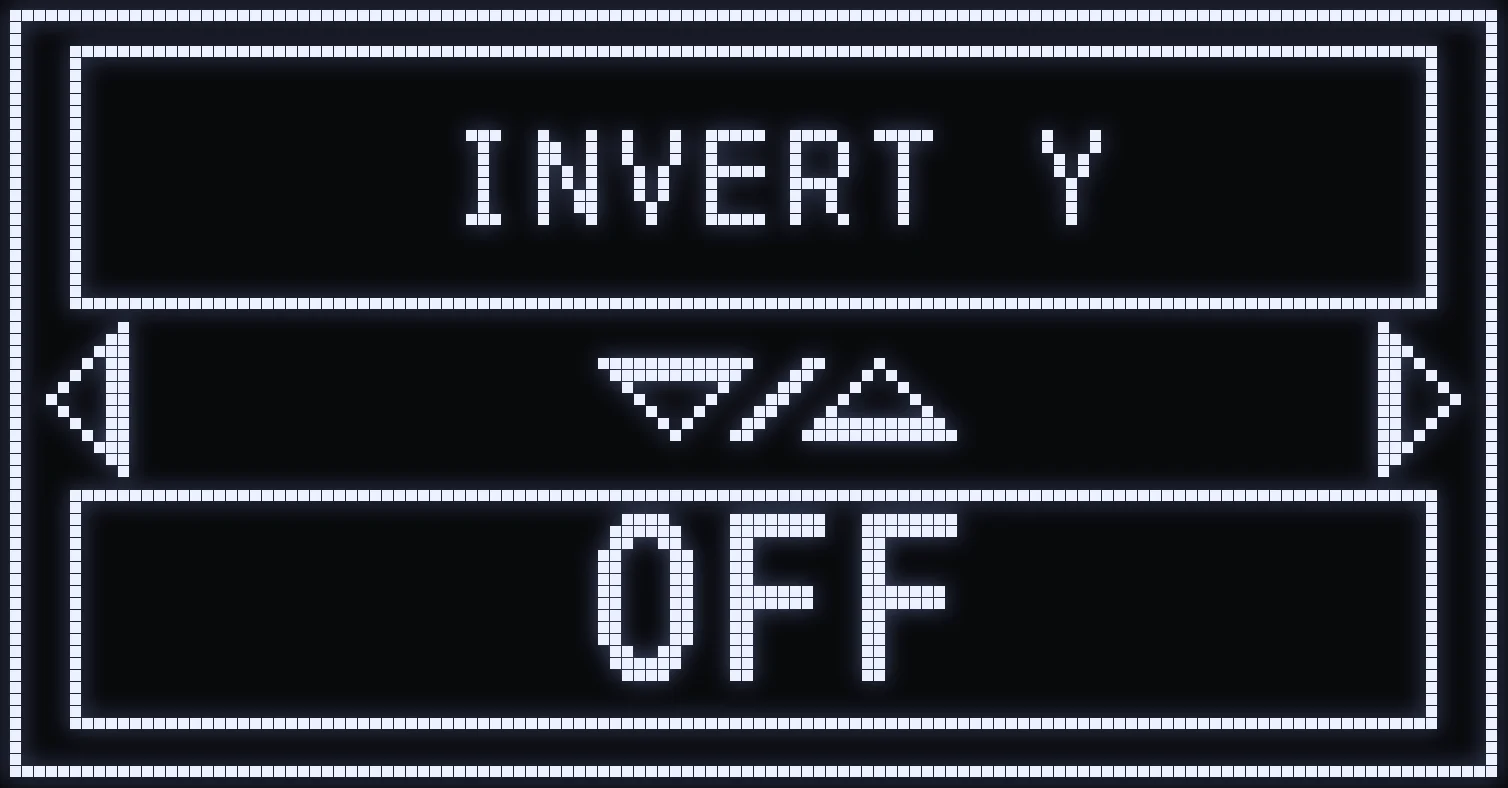
INVERT Y adapts how the script works when you use inverted vertical aim in the game settings.
Some players prefer the crosshair to go up when they push the stick down, and vice versa.
If you use this setup, JAGUAR has to take it into account to apply its vertical corrections properly.
⚙️ AVAILABLE MODES
- ON: select this if you use inverted vertical aim in the game. - OFF: select this if you use normal vertical aim.
Use UP / DOWN to turn this option on or off.
💡 EXAMPLE
If the Invert Vertical Look option is turned on in your game, turn on INVERT Y in JAGUAR as well.
⚠️ IMPORTANT: This option adapts the script's corrections to aim that's already inverted. It doesn't replace the invert setting in the game.
✅ TIP: Leave this option OFF if you play with standard aim controls.
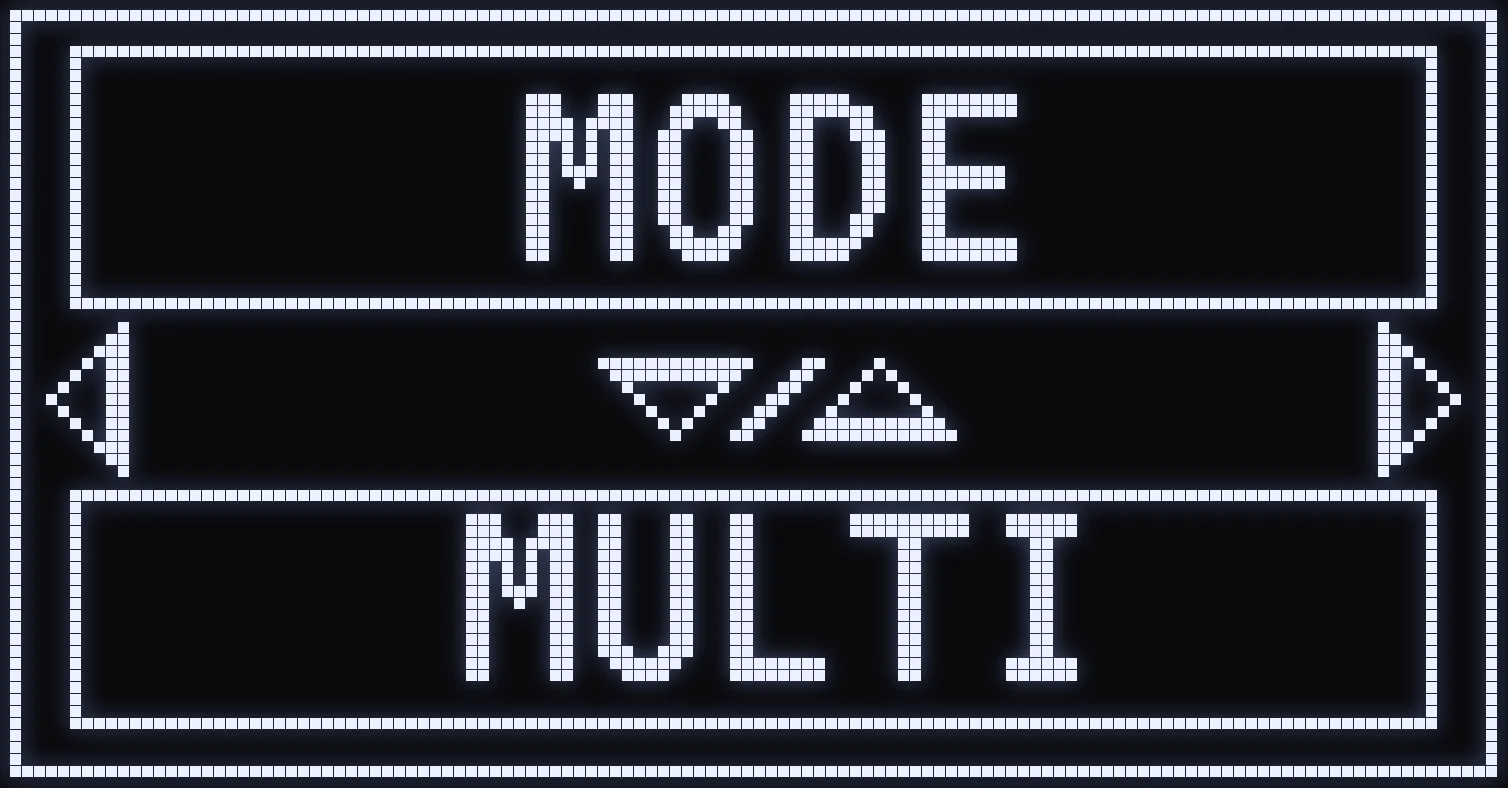
MODE
🎮 WHAT IS THIS SETTING FOR?
MODE is only used for auto-detection on PS5. Depending on the mode you choose, the makeup of the detection groups changes, because some weapons aren't recognized the same way.
⚙️ AVAILABLE MODES
- MULTI: multiplayer, Ranked included. - W: Warzone. - TR: weapon fitted with the Rapid Fire attachment.
Use UP / DOWN to select the mode you want.
💡 EXAMPLE
In regular multiplayer as well as in Ranked, use MULTI.
When you switch game modes, remember to check this option so detection stays matched.
⚠️ IMPORTANT: MODE doesn't change the game mode itself and has no effect on Xbox. It's only used to adapt how JAGUAR recognizes weapons on PS5.
✅ TIP: Also check that AUTO DETECT is on if you want to use auto-detection.
Frequently asked questions
What do you put in VALUE HIP and VALUE ADS?
Copy your in-game sensitivities: VALUE HIP = stick sensitivity, VALUE ADS = ADS sensitivity multiplier. These screens don't change your sensitivity: they tell JAGUAR which one you use.
What is LOWZONE % for?
It smooths out small movements near the center of the right stick. It applies to every shot, whether you aim or not, and you open it with CROSS / A from SENS HIP FIRE or SENS ADS&FIRE.
Which CURVE should you choose?
The same one as in the game: STANDARD for the Standard curve, DYNAMIC for the Dynamic curve.
Which MODE should you choose in SETTING?
MULTI in multiplayer as well as in Ranked, W in Warzone, TR if your weapon has the Rapid Fire attachment. This setting is only used for auto-detection on PS5 and has no effect on Xbox.