Auto-detection
PS5 AUTO-DETECTION
🎮 HOW DOES AUTO-DETECTION WORK?
On PS5, and on PC with a PS5 controller, the JELLY script uses the information sent by the DualSense controller's adaptive triggers to automatically recognize the weapons you're using.
When a weapon is recognized, the script automatically selects its profile to apply the anti-recoil settings for that weapon.
Most supported weapons can be recognized individually, but some share identical detection information. That's why JELLY has a detection group system.
⚠️ IMPORTANT: Adaptive triggers must stay ENABLED in the game settings for auto-detection to work properly.
🔄 WHAT ARE DETECTION GROUPS FOR?
Some weapons share the same trigger information, so the script can't always tell them apart automatically.
To solve this, JELLY offers 3 groups, each linking several weapons to their own anti-recoil profiles.
When you use a weapon affected by this system, just select the group it appears in.
The script can then apply the profile of that group's weapon when it recognizes its signal.
🎮 HOW DO YOU CHANGE GROUP?
Hold TOUCHPAD + R3 on your PS5 controller.
TOUCHPAD + R3
Each time you use this shortcut, you move on to the next group:
GROUPE 1 → GROUPE 2 → GROUPE 3 → GROUPE 1
The selected group shows up right on the Cronus Zen's OLED screen, along with the names of its weapons.
🔫 HOW DO YOU PICK THE RIGHT GROUP?
Just look at the weapons shown on screen when you change group.
For example, if you're using the REZI, select the group where REZI appears.
If you then switch to a weapon that needs another group, use TOUCHPAD + R3 again to select the one that matches your new weapon.
⚠️ WARNING: A group holds several weapon matches. So changing group changes several detection links at once, not just one weapon.
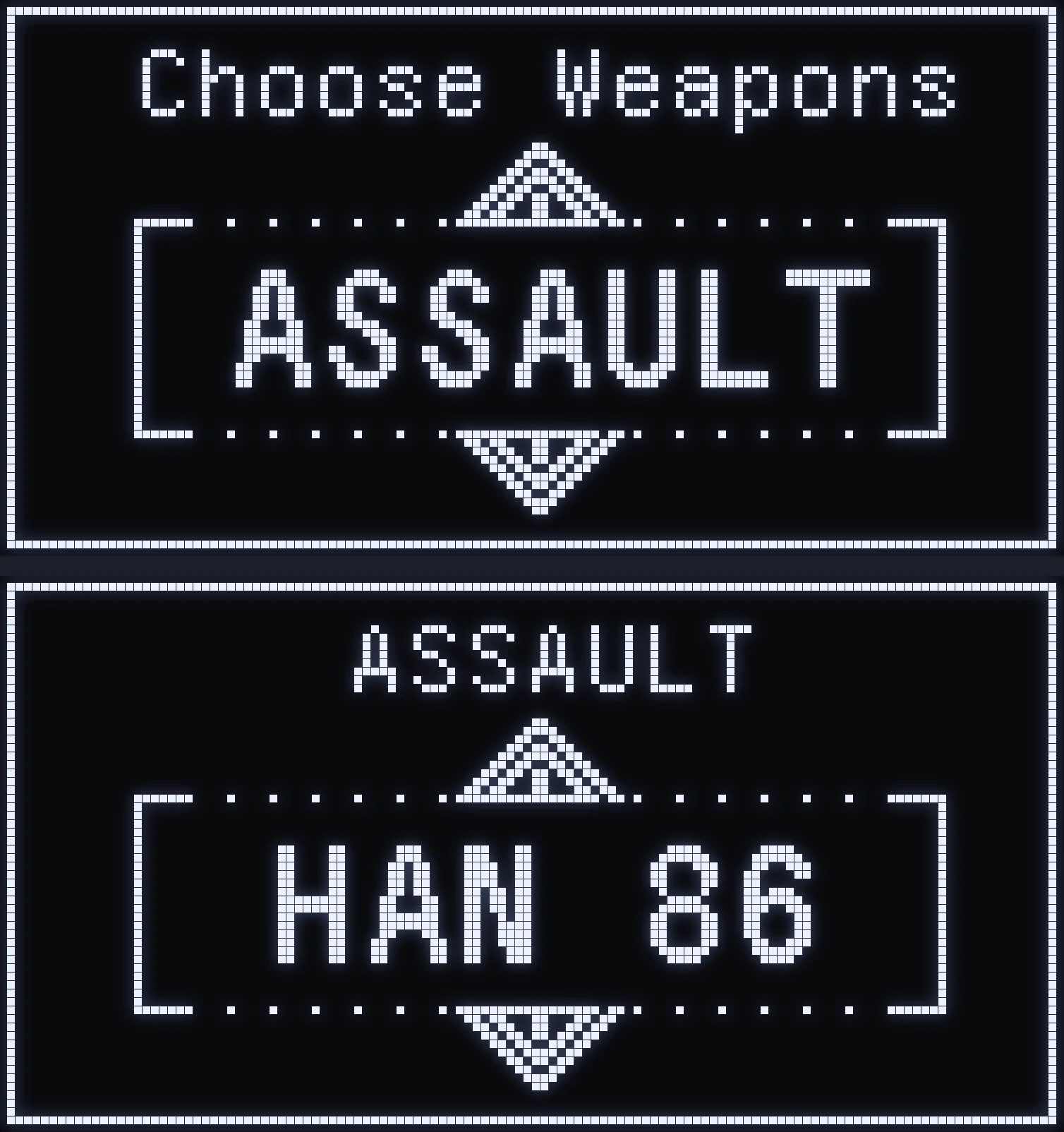
🎯 MANUAL WEAPON SELECTION
You can also pick your weapon manually whenever you want.
To open the weapon selection menu:
L2 + SHARE / CREATE
- UP / DOWN: choose a weapon category. - CROSS: enter the category. - UP / DOWN: browse the available weapons. - CROSS: select the weapon and apply its profile. - CIRCLE: go back.
This manual selection lets you use the chosen weapon's anti-recoil settings straight away, especially in the firing range on PS5, where auto-detection isn't possible.
⚠️ If auto-detection is on, a newly recognized weapon may then replace this manual selection.
⚙️ A FEW TIPS
- ✅ Turn on AUTO DETECT in the SETTING menu. - ✅ Keep adaptive triggers enabled in the game and on the console. - ✅ If your weapon belongs to a group, select the one it appears in. - ✅ Check that the weapon profile applied really matches your loadout.
💡 With the right setup, JELLY can switch anti-recoil profiles automatically for recognized weapons, so you don't have to select each new weapon by hand.

🔫 PS5 DETECTION GROUPS
Some weapons have exactly the same detection. The chosen group tells the script which weapon to apply. Each screen above is one group, with its weapons:
GROUPE 1
PATRIOT • MAR-9 • ISO NIGHT • REZI 12
GROUPE 2
ORIS 8.6 • MAR-9 • VEL 46 • SNIPER
GROUPE 3
PATRIOT • CRONEN S • VEL 46 • SNIPER
🎮 Change group: TOUCHPAD + R3 — GROUPE 1 → 2 → 3 → 1. The chosen group and its weapons are shown on the Cronus screen.
💡 Select the group your weapon appears in so the right detection match, and its anti-recoil, are used.
XBOX AUTO-DETECTION
How does automatic weapon detection work?
The JELLY script uses the vibrations generated by the game to automatically identify the weapon category you're using and apply the matching anti-recoil settings.
⚠️ IMPORTANT: Vibration must stay enabled in the game settings for this detection to work.
🎯 AUTO-DETECTED CATEGORIES
The script tells apart the following categories:
- ASSAULT — Assault rifles - SMG — Submachine guns - HAND-GUN — Pistols - LMG — Light machine guns
Each of these four categories has its own auto-detection.

🔄 SPECIAL CASE: SHOTGUN / SNIPER / MARKSMAN
The MARKSMAN, SNIPER and SHOTGUN categories share one and the same detection.
To tell the script which of these three categories you're using, just use this shortcut:
VIEW + R3
This shortcut cycles from one category to the next:
MARKSMAN → SNIPER → SHOTGUN → MARKSMAN
The chosen category stays saved, even after you unplug the Cronus.
R3 means clicking the right joystick.
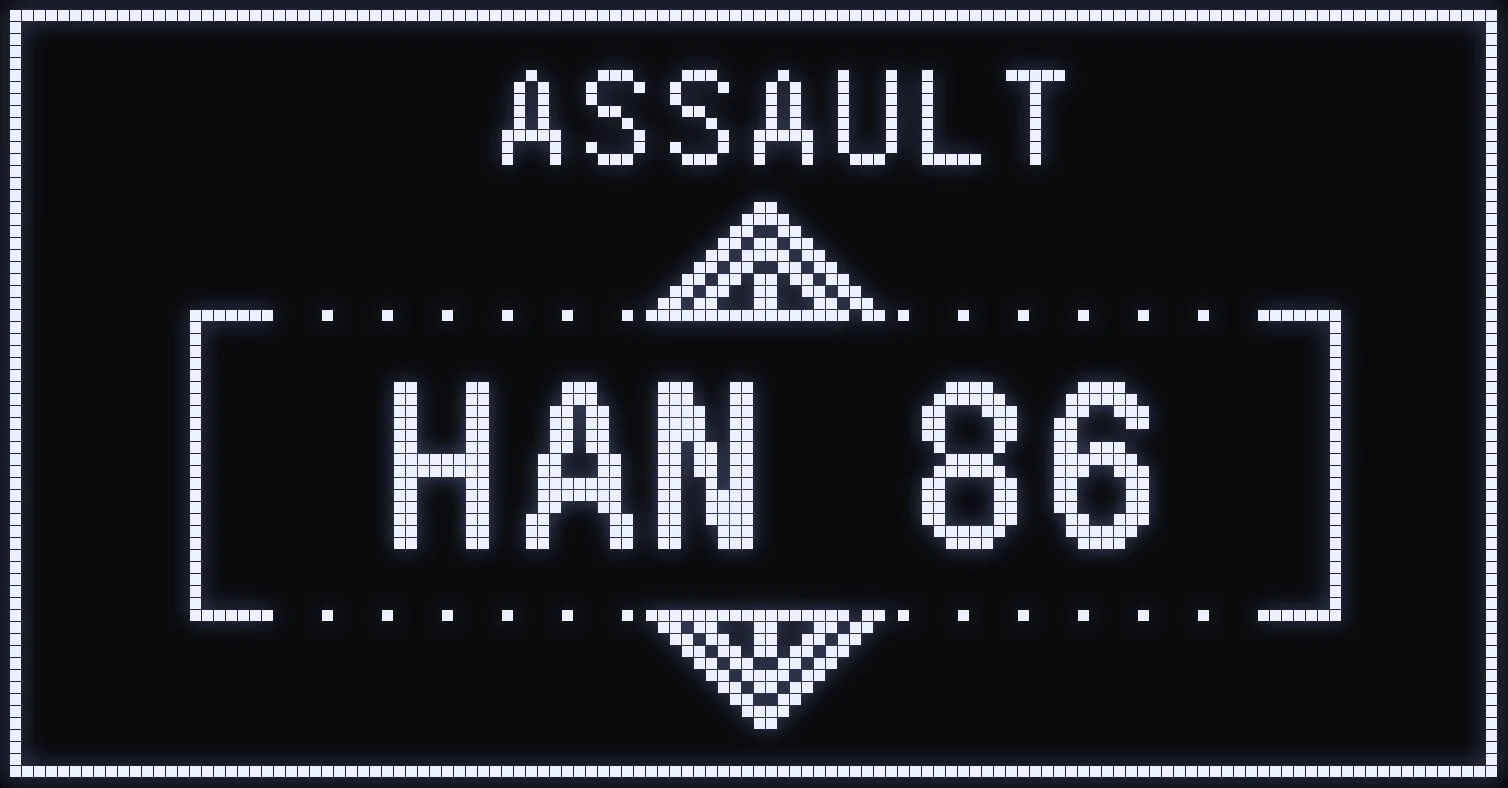
🔫 SELECTING YOUR WEAPON FOR PRECISE ANTI-RECOIL
Detection identifies a weapon category, but you can also specify which weapon should be linked to each of these categories.
To do this, open the weapon selection menu with:
LT + VIEW
In this menu, you can select the weapon you want to assign to each category.
The script can then use the anti-recoil settings specific to the selected weapon, instead of one identical setting for every weapon in the same category.
💡 HOW IT WORKS: AN EXAMPLE
You're using an assault rifle and you've selected your weapon in the ASSAULT category through the LT + VIEW menu.
When JELLY recognizes the ASSAULT category from the game's vibrations, it applies the anti-recoil settings of the weapon you linked to that category.
The same principle applies to the other detected categories.
✅ TIP: Make sure you select your weapons correctly in each category and keep vibration enabled in game to get the most out of auto-detection and properly tuned anti-recoil.
Frequently asked questions
How does weapon auto-detection work on PS5?
JELLY recognizes your weapon through the DualSense adaptive triggers, then applies its anti-recoil profile. Adaptive triggers must stay enabled in the game and on the console, and AUTO DETECT must be ON in SETTING.
Which detection group should I pick on PS5?
Some weapons share the same detection: pick the group your weapon appears in. TOUCHPAD + R3 cycles through GROUPE 1 → 2 → 3, and the Cronus shows each group's weapons.
How does auto-detection work on Xbox?
JELLY recognizes the weapon category from the game's vibrations, so keep vibration enabled. MARKSMAN, SNIPER and SHOTGUN share the same detection: pick the right one with VIEW + R3. Then link your weapon to each category with LT + VIEW.
My weapon isn't detected correctly. What should I do?
Check that AUTO DETECT is ON, that adaptive triggers (PS5) or vibration (Xbox) are enabled, and that you're on the right group. You can also pick your weapon by hand with L2 + SHARE (Xbox: LT + VIEW).