Layout / buttons
This menu lets you tell the script your in-game buttons. The right method depends on your console (PS5 / Xbox) and on how you've customized your buttons.
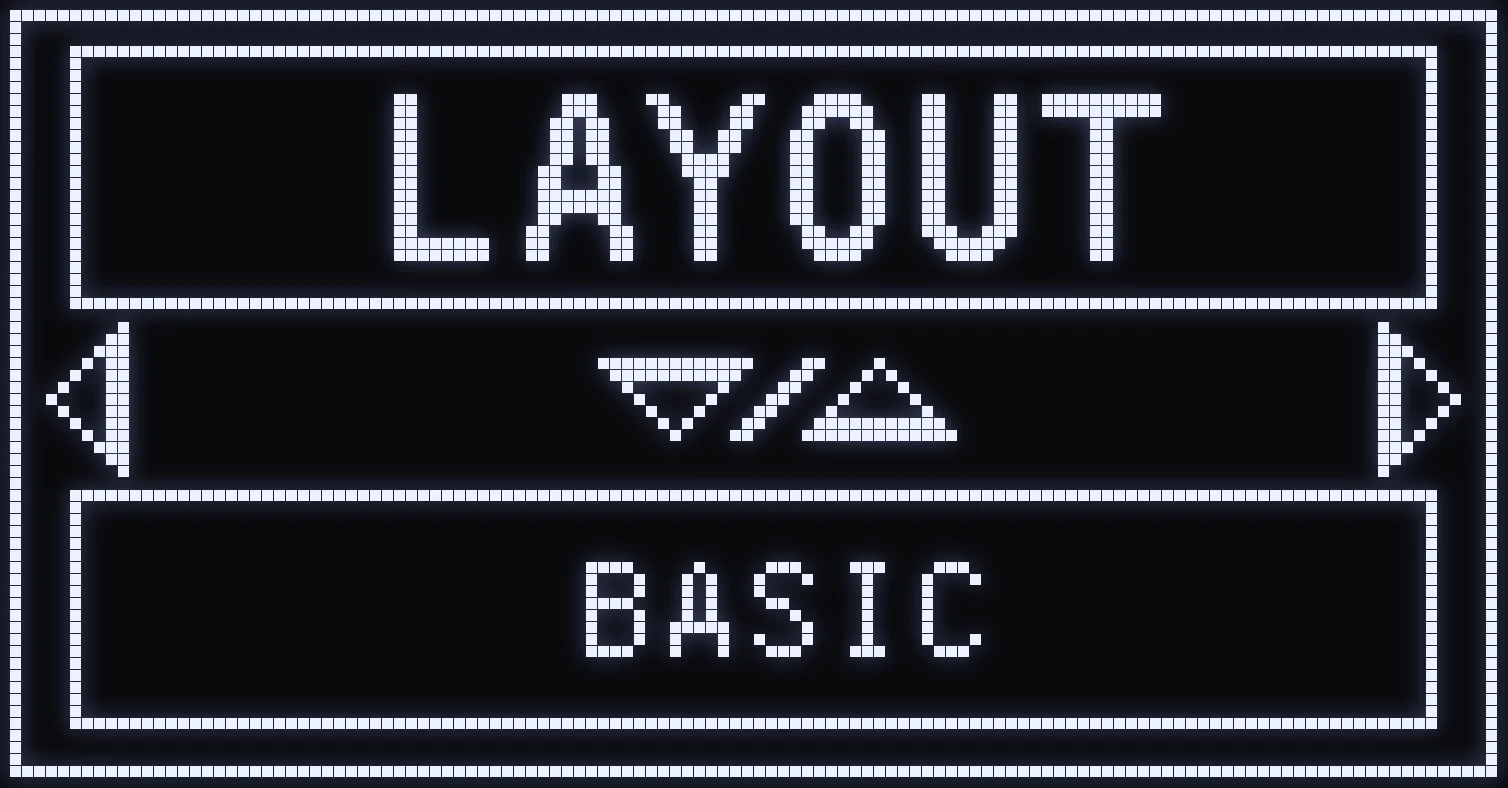
BASIC MODE
All your buttons must be set both in the game AND in the script, except the L2 / R2 triggers.
❗ IMPORTANT: on a PS5 controller, L2 and R2 must stay on aim and fire in the game.
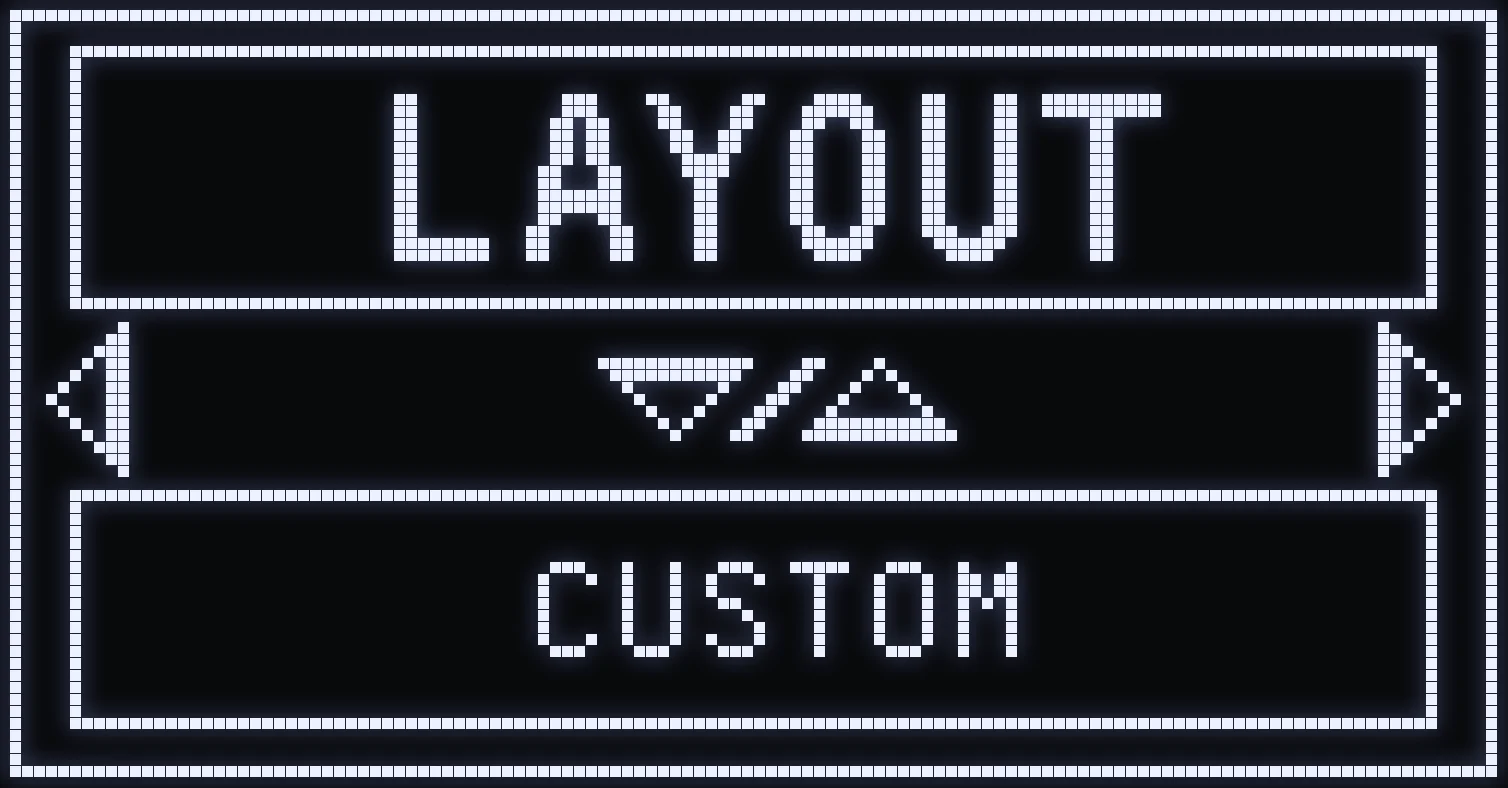
CUSTOM MODE
In the game, leave the default button layout and set the buttons you want in the script. This mode lets players who customize their buttons still keep weapon auto-detection.
⚠️ WARNING: CUSTOM mode fully remaps the buttons based on what you set: in the game menus, these remapped buttons can get in your way.
SETTING UP THE BUTTONS
- LEFT / RIGHT: choose the action to set up from the 14 actions shown on the screen: ADS (aim), FIRE, RELOAD, JUMP, CROUCH, PING, MELEE, SPRINT, SWAP (switch weapon), MORTAL, TACTIC, HEAL, ITEM, EMOTE. - UP / DOWN: scroll through the button assigned to that action. - CIRCLE / B: back to the main menu.
Frequently asked questions
What's the difference between BASIC and CUSTOM in LAYOUT?
In BASIC, you set your buttons both in the game and in the script, except L2 and R2. In CUSTOM, you leave the default buttons in the game and choose your buttons in the script: handy for keeping auto-detection with custom buttons.
Why do I need to tell the script my game buttons?
The script uses these buttons for its mods, for example JUMP, CROUCH or RELOAD. If the LAYOUT doesn't match your in-game buttons, the mods won't press the right button.
Can I change L2 and R2 in the game's button layout?
On a PS5 controller, no: L2 and R2 must stay on aim and fire in the game.